Making Linux Startup a Little Less … Linuxy
but in the most Linuxy way possible
I've been using elementary OS on an old MacBook Pro and there's surprisingly little that I hate about it. That, of course, has given me time to find things that I don't quite like as much as I want to and then poke around and see if I can make them better. Last week's effort was some fine tuning of my keyboard layout that resulted in me filing a bug report, but it also meant that I had many opportunities to be disappointed by the system's appearance during startup.
The Linux startup experience is defined in two different places. If you want the experience to seem as seamless as possible, you have to fix both of them.
The first part of the puzzle is the boot loader, Grub. Grub is one of those things where somebody made a better boot loader than the one that had come before it, but stopped just after the point they'd made a better thing. As a functional boot loader Grub is fine, but it operates strictly in text mode and its default font can be tiny on a modern computer with a high resolution display. If you spend any time looking at it at all (such as when you're testing settings that require a reboot, or if you're switching back and forth between operating systems on the same computer), you start to wonder why it still looks like that. I started to wonder, anyway.
Some distributions package a larger font for Grub to use, but if your distribution doesn't have a large enough font, you can change it. The grub-mkfont command is provided for this purpose, because Grub can't just use a regular font (because of course it can't). I followed these instructions on Stack Exchange to make a Grub-compatible font.
While you're editing /etc/default/grub to point it at your new, larger font, you can also set a background image for Grub with the GRUB_BACKGROUND="/path/to/your/image". So I did that and used the same image I use as my wallpaper when I'm logged in. Then I ran sudo update-grub, rebooted, and discovered that I couldn't read Grub's white text against the sky in my wallpaper photo. So I made a copy of my wallpaper photo, opened it in an editor, and overlaid a black, slightly translucent box over it. But how did I figure out what size to make the box? Are the margins for Grub's old school ASCII box documented anywhere? It does not seem like they are.
So I downloaded a wallpaper that looked like a black and white sheet of grid paper, sized for my display. I measured the size of the grid in a photo editor (each square seemed to be 40 × 40 pixels), temporarily made it my Grub wallpaper, and then took a photo of it.
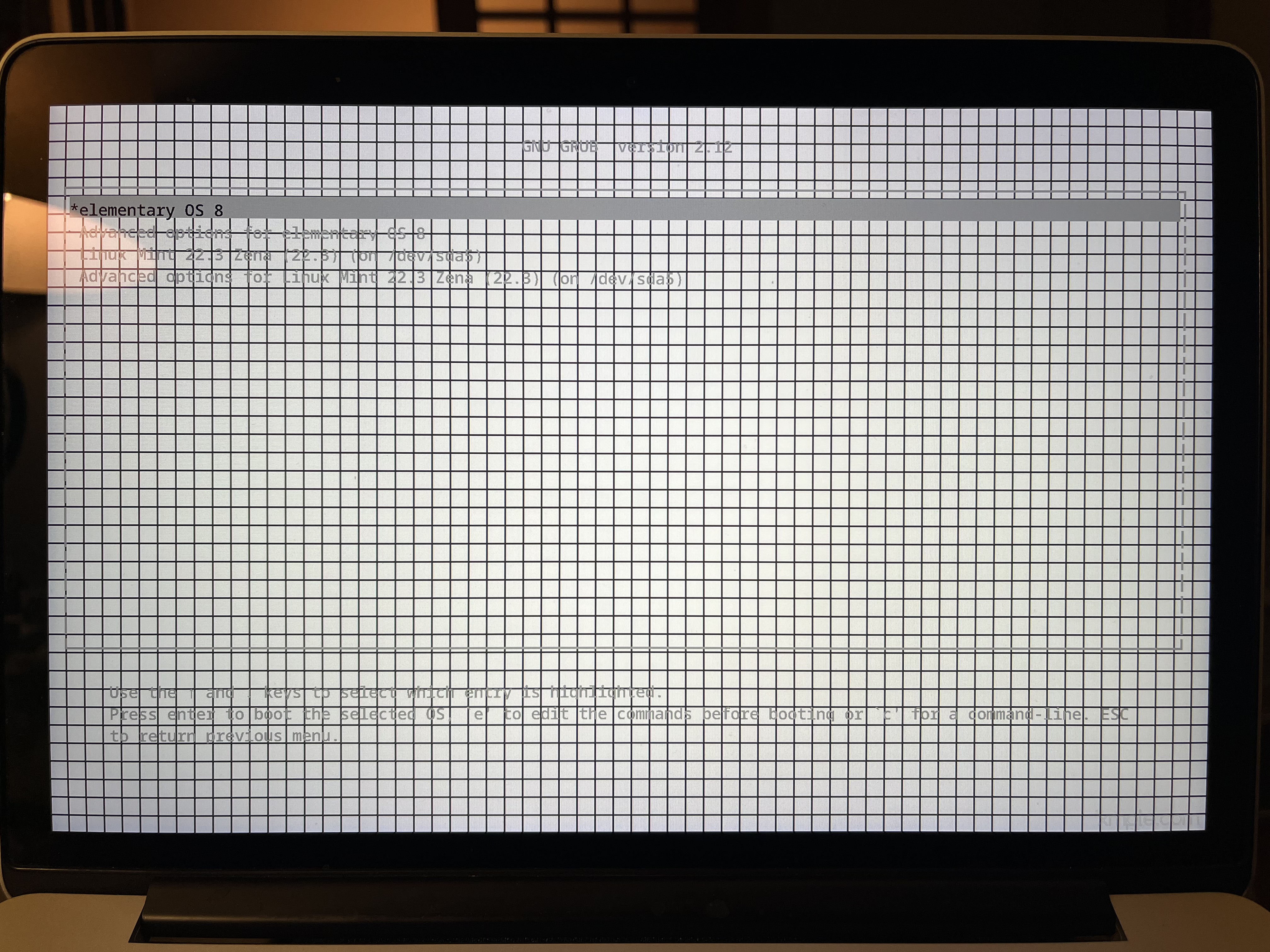 I wish I were joking
Then I counted boxes (eyeballing the fractions), divided by 40, and used those numbers to get an approximate size for the overlay. It took a few iterations to fine tune the image so the overlay fit precisely into Grub's ASCII box, but it looks nice now.
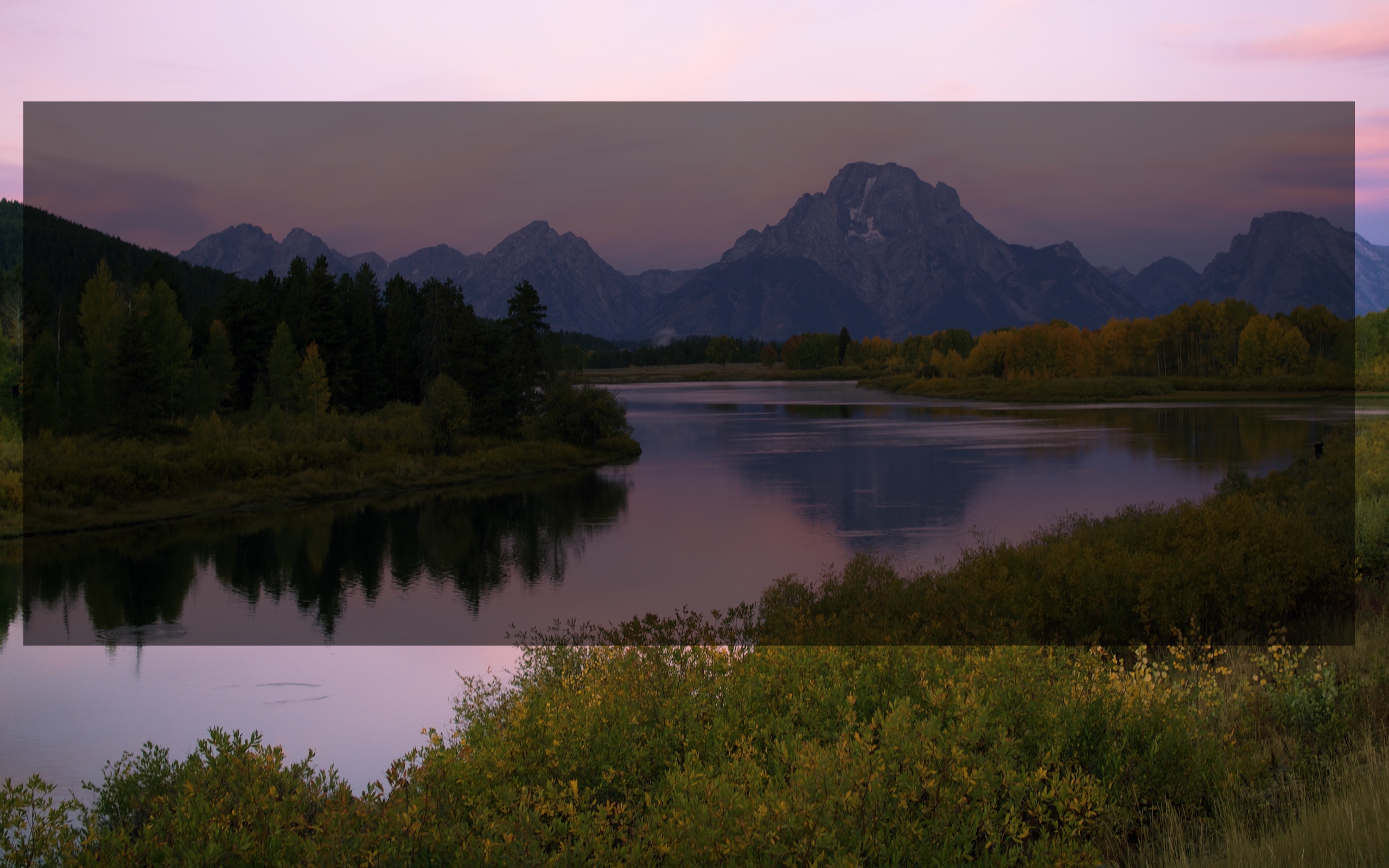 The image file itself, but with no Grub interface. You'll have to trust me that the overlay is the right size for Grub on my screen.
But that's only the first part of the Linux startup process. Once Grub actually loads an operating system, the operating system takes over the display. In this case, the system is using Plymouth, and even more specifically it is using a Plymouth plugin called two-step. Sadly, Plymouth documentation is scant and two-step itself seems almost entirely undocumented. I couldn't figure out how to place my wallpaper and get Plymouth to scale it properly for whatever resolution it's using (which for some reason is not the full resolution of the display) until I read the two-step source code.
It turns out that you can place a background image and get Plymouth to scale it simply by dropping a PNG file named background.png in the active theme's image directory and adding a single line of code to the theme's THEMENAME.plymouth file. By the time I found this I'd already cloned the base elementary theme in /usr/share/plymouth/themes/ but in retrospect I could have just added the file to the existing theme. The THEMENAME.plymouth configuration file is a plain text file. Find the [two-step] block and add a single line that says ScaleBackgroundImage=1 and Plymouth will scale your image to fit without you having to do any work. After you add the image and line of code, install it with the command sudo update-initramfs -u and reboot.
Now when my computer starts up, the same image seems to carry through the entire process from the boot loader all the way into my desktop wallpaper. It's actually three different images (a JPEG with an overlay for GRUB, a PNG for Plymouth, and a JPEG for the wallpaper), and if you sit there watching you can see the screen go blank briefly every time it switches between them. If you're not watching closely, however, it looks more or less like it's just one image and other stuff is happening around it. You almost can't see the duct tape holding it all together.
I don't have comments on here, but if you want to respond to this post, I'm on the fedi as fedward@distraction.party.